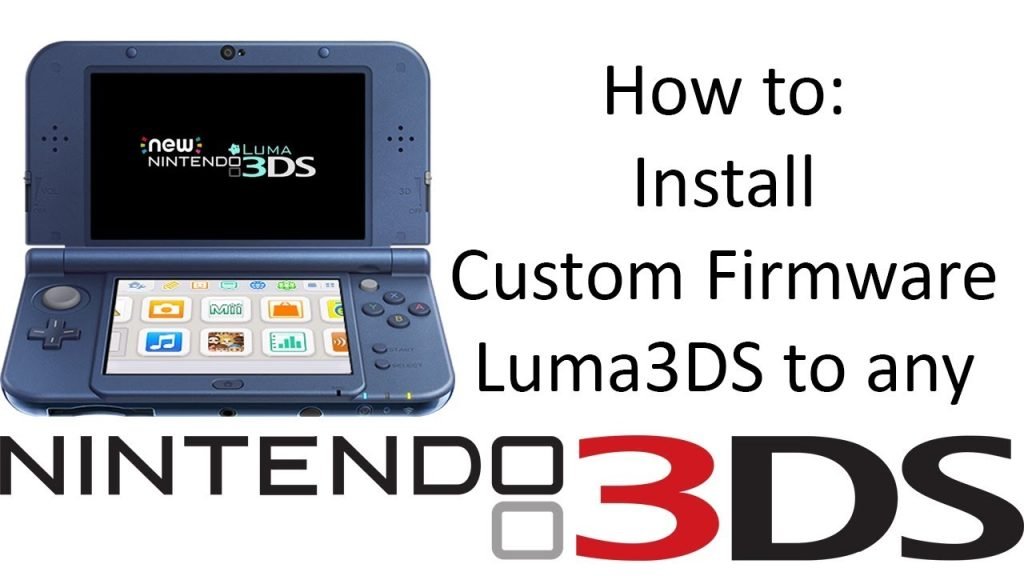
The Nintendo 3DS family of handheld systems remains one of the most beloved platforms for gaming enthusiasts. While the console already offers a wide variety of official games and services, many players look for ways to unlock additional features. This is where custom firmware like Luma3DS plays an important role by enabling advanced customization, region-free access, and homebrew support.
Luma3DS is recognized as the most reliable and user-friendly custom firmware available for the Nintendo 3DS line. It provides stability, continuous updates, and compatibility across all 3DS models. For individuals seeking to maximize their handheld gaming experience, installing Luma3DS is a gateway to new opportunities such as mods, cheats, and system tweaks.
Understanding the correct steps for installation is critical for both safety and efficiency. This guide explains in detail how to install Luma3DS, the preparation process, necessary files, and additional tips to ensure a smooth setup. By following this structured approach, you can transform your Nintendo 3DS into a highly versatile system.
Preparing for Installation
Checking Console Compatibility
Before starting the installation, verify whether your console model supports Luma3DS. The custom firmware works with Old 3DS, New 3DS, Old 2DS, and New 2DS XL. Ensuring compatibility helps prevent errors during the setup process.
Backing Up System Data
Creating a backup of your system’s SD card is essential. A backup guarantees that you can restore files in case of corruption or failure during the installation. Users are advised to copy all files onto a secure storage device.
Gathering Required Tools
Successful installation requires specific tools such as an SD card reader, a reliable internet connection, and access to a computer. Additionally, downloading the official files and essential payloads ensures a seamless process.
Downloading Necessary Files
Official Release
Begin by downloading the latest official release of Luma3DS from its trusted GitHub repository. Using authentic sources prevents the risk of corrupted files or malware.
Boot9Strap Files
Boot9Strap is a fundamental part of the installation process. It works as the bootloader that allows to run correctly. Always use updated versions to avoid incompatibility.
Homebrew Launcher Setup
The Homebrew Launcher provides access to community-made applications. Downloading and preparing this tool enables customization options such as themes, emulators, and system utilities.
Step-by-Step Installation Process
Inserting Required Files
Copy and Boot9Strap files onto the root of your SD card. Ensuring accurate placement of files is crucial for the system to recognize them.
Using SafeB9SInstaller
Boot the console while running SafeB9SInstaller from the designated payload. This installer ensures a safe installation of Boot9Strap without damaging system firmware.
Configuring Luma3DS
After installing Boot9Strap, restart the console, and launch Luma3DS configuration. Check settings such as “Show NAND or user string in System Settings” to confirm proper installation.
- Insert SD card with required files
- Launch SafeB9SInstaller payload
- Install Boot9Strap successfully
- Configure Luma3DS settings
- Restart to finalize installation
Post-Installation Setup
Updating Luma3DS
Keeping updated ensures security and stability. Regularly check the GitHub repository for new releases and apply updates to maintain compatibility with system applications.
Installing Homebrew Apps
Users can expand their console’s functionality by installing apps through the Homebrew Launcher. Examples include game emulators, media players, and system customization tools.
Setting Up System Tweaks
Its allows multiple system tweaks such as disabling signature checks, enabling custom themes, and running region-free titles. Adjusting these options enhances overall usability.
- Update regularly
- Add new homebrew applications
- Apply system tweaks as needed
- Test functionality of installed features
- Maintain organized SD card structure
Troubleshooting Common Issues
Console Fails to Boot
If the console fails to start after installation, double-check file placement on the SD card. Corrupted or missing files often cause this problem.
SafeB9SInstaller Errors
Errors during SafeB9SInstaller setup typically result from outdated or incompatible files. Downloading the latest versions usually resolves these issues.
Luma3DS Configuration Problems
If settings do not save properly, ensure that the SD card is not write-protected. Reformatting may be required in severe cases.
Benefits of Installing Luma3DS
Expanded Game Library
Installing Luma3DS allows region-free gaming, which means you can play titles not released in your region. This broadens your game collection significantly.
Homebrew and Mods
Its supports a wide range of homebrew applications and mods. Players can install fan translations, cheat menus, and other enhancements to improve gameplay.
Enhanced System Control
Through its configuration menu, Its grants users more control over the console. Options like custom themes, faster booting, and improved performance elevate the overall experience.
- Access region-free gaming
- Install and use homebrew apps
- Apply mods and cheat support
- Customize system themes
- Improve gaming performance
Conclusion
Installing Luma3DS on your Nintendo 3DS is a rewarding process that enhances the console’s functionality beyond its default limitations. From region-free gaming to homebrew support and advanced customization, it transforms the system into a versatile entertainment hub. Following the correct installation steps ensures a smooth and safe process. With proper care, regular updates, and the right tweaks, your 3DS can remain relevant and enjoyable for years to come.